


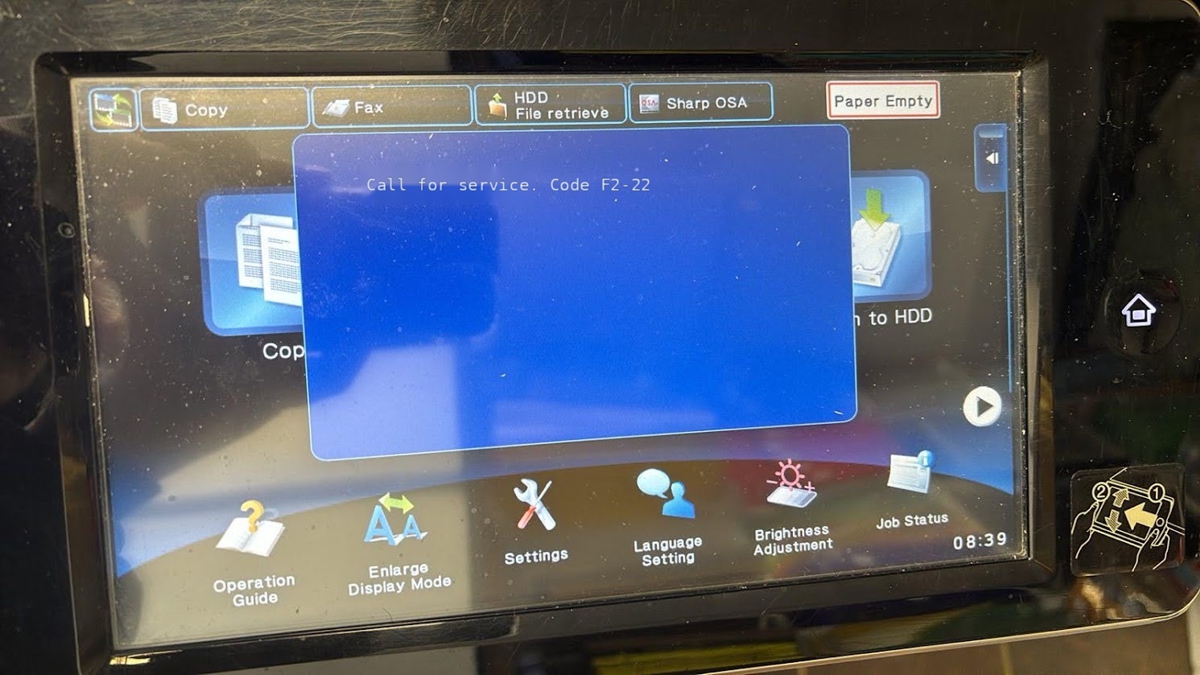
If your Sharp MX-M565 shows the F2-22 error, the machine has detected a discharge lamp (K) problem – not a toner, paper, or fuser fault. On the MX-M565 (and the
If your Sharp MX-M565 shows the F2-22 error, the machine has detected a discharge lamp (K) problem – not a toner, paper, or fuser fault. On the MX-M565 (and the
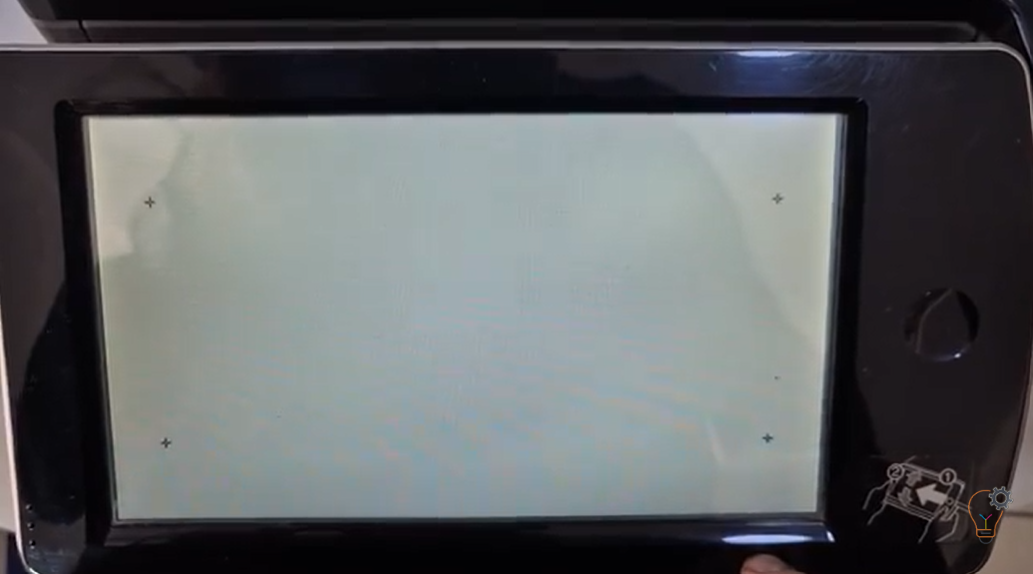
If the touchscreen on your SHARP multifunction printer is not responding correctly, registers the wrong position, or feels slow and inaccurate, a touch panel adjustment (calibration) may solve the issue.
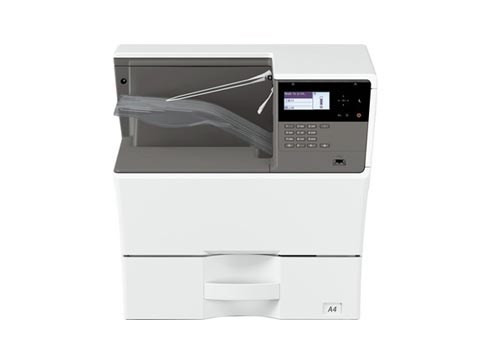
By default the USB port is disabled on these Sharp models. To enable the USB port on the Sharp MX-B350P, AR-B352PT, MX-B450P and AR-B452PT, you enter simulation mode and switch
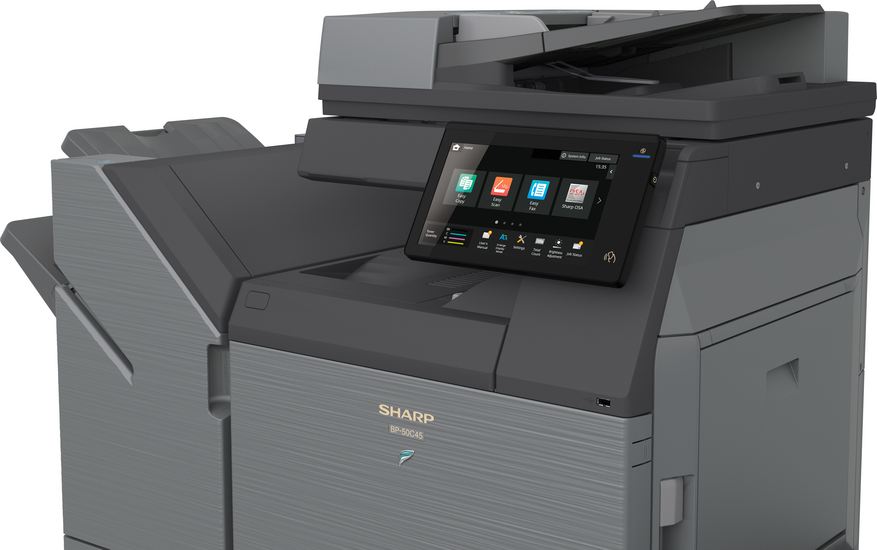
By default the USB port (Type B) is disabled on this model. To enable the USB port on the Sharp BP-50C26, you enter simulation (service) mode and switch it on.
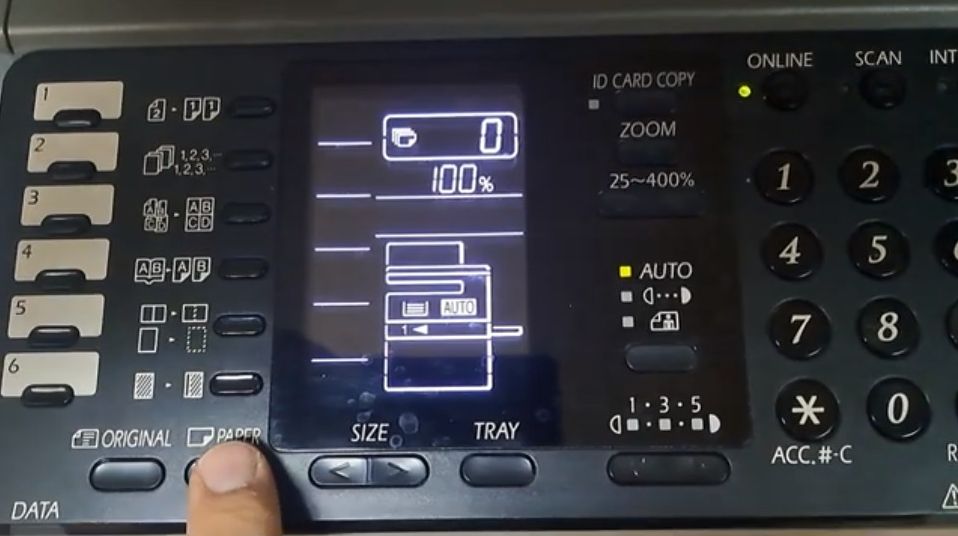
Changing the paper size on the Sharp AR-6020 is needed when you load a different size into Tray 1 or the bypass (manual) tray, so the copier stops asking for
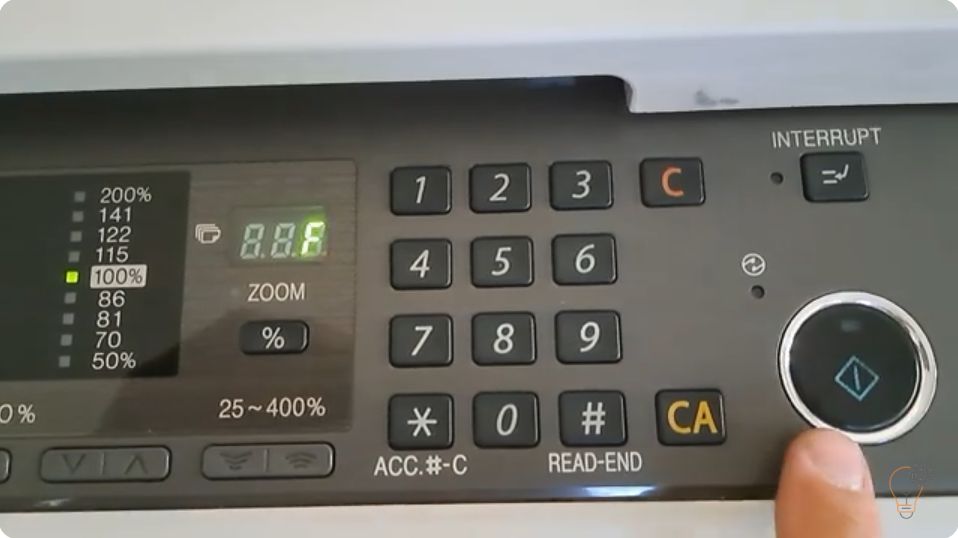
When a Sharp copier reports a fault it first shows only the first two characters of the code (for example H2 or F2). To diagnose the problem you need the
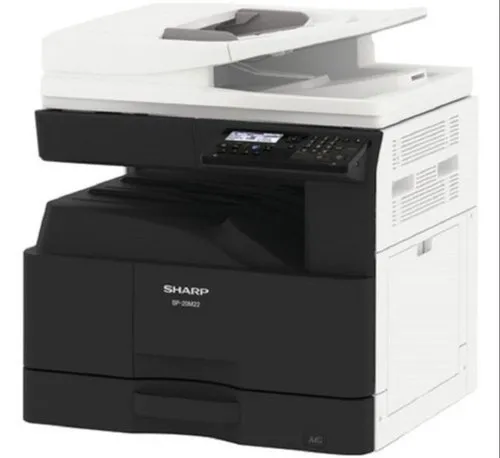
By default the USB port (Type B) is disabled on these models. To enable the USB port on the Sharp BP-20M22, BP-20M24, BP-20M28 and BP-20M31, you enter simulation (service) mode
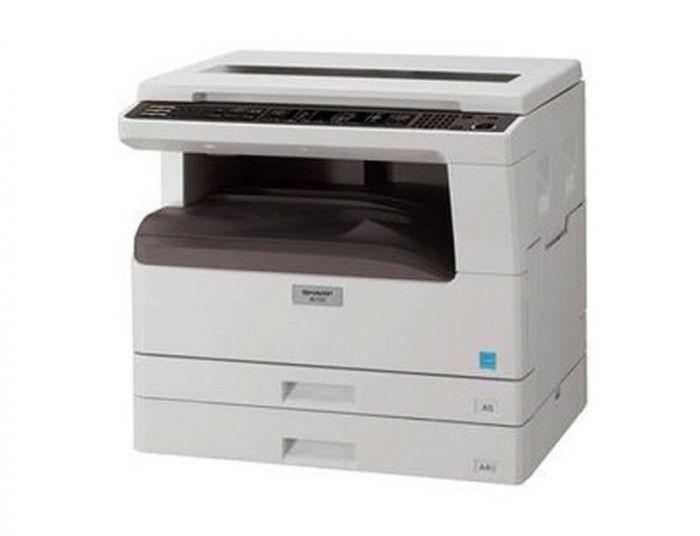
If you want to check the remaining toner life on the Sharp AR-5516, AR-5518, AR-5520, AR-6020 or AR-6023, the copier can show the toner level as a percentage using a
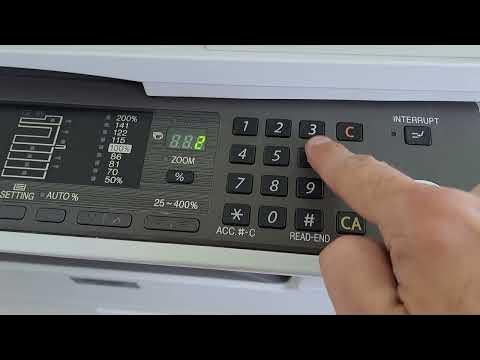
To reduce toner consumption you can turn on toner save mode on the Sharp AR-5516 / AR-5520 series. It is enabled through the machine’s simulation (service) mode using the key
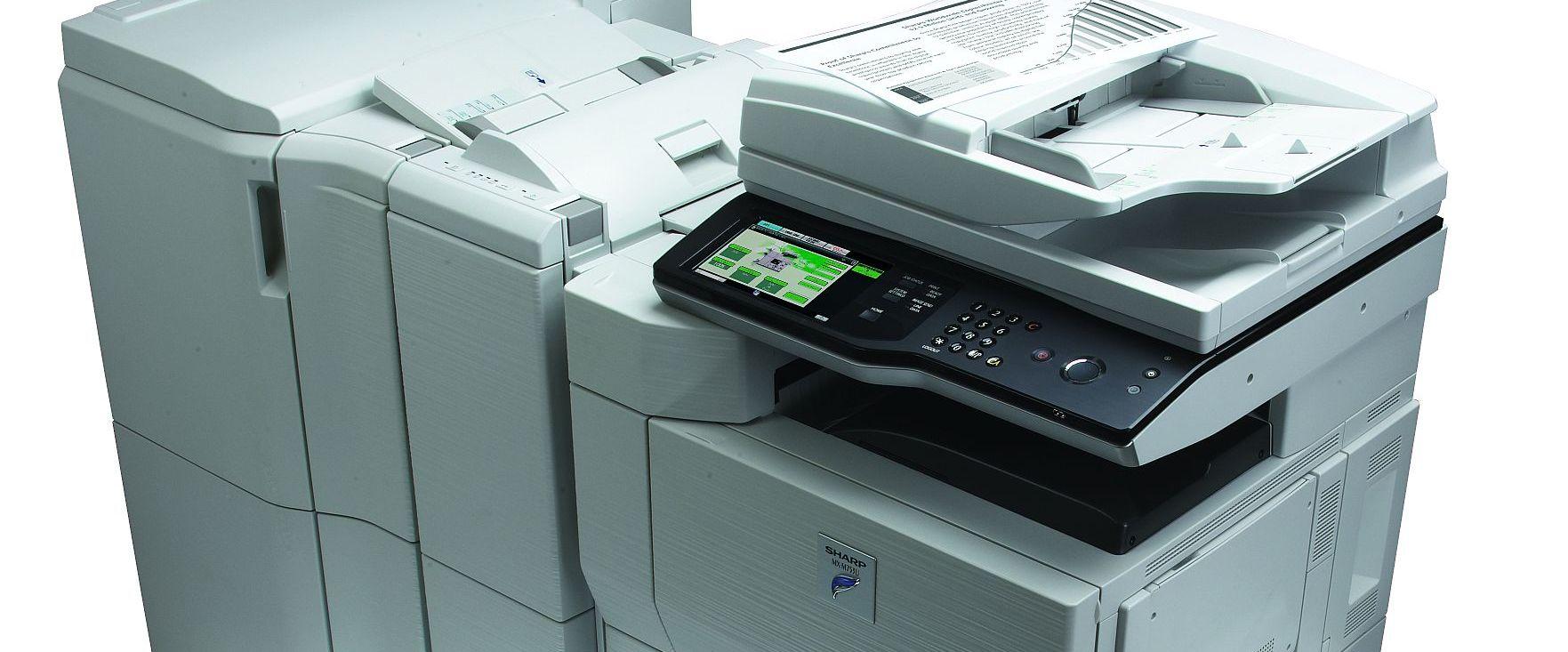
The Sharp error “Call for service L4-03” indicates a functional problem with the fusing (fuser) drive — usually a locked fusing motor. It appears on models such as the Sharp