
Now Reading: Change the paper size on tray 1 and bypass tray on SHARP AR-6020 series
-
01
Change the paper size on tray 1 and bypass tray on SHARP AR-6020 series

Change the paper size on tray 1 and bypass tray on SHARP AR-6020 series
Changing the paper size on the Sharp AR-6020 is needed when you load a different size into Tray 1 or the bypass (manual) tray, so the copier stops asking for the wrong size. This guide explains how to change the paper size on the Sharp AR-6020 series, and the video below shows the exact on-screen steps.
How to change the paper size on the Sharp AR-6020
There are two parts — adjusting the tray physically and telling the machine which size is loaded:
- Pull out Tray 1 (or open the bypass tray) and move the paper guides to match the new paper size, then reload the paper.
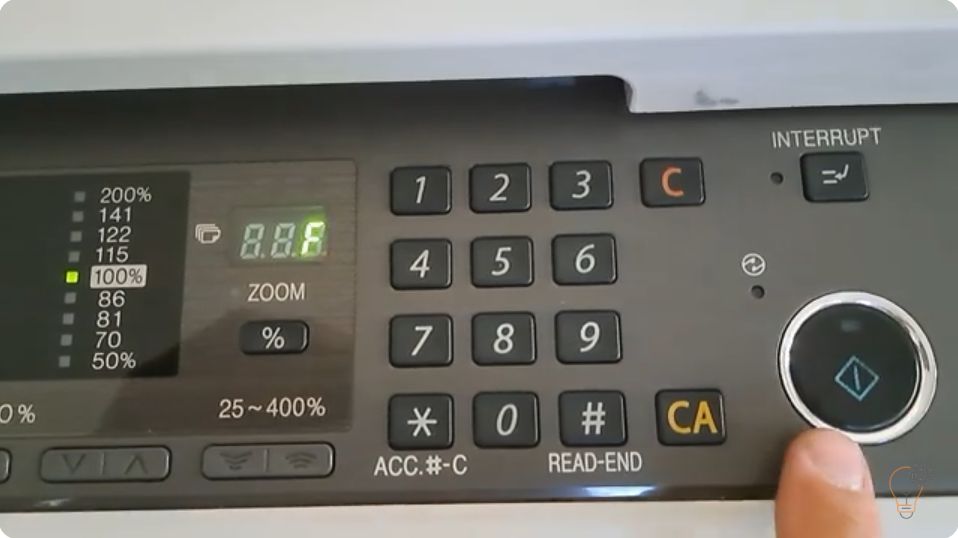
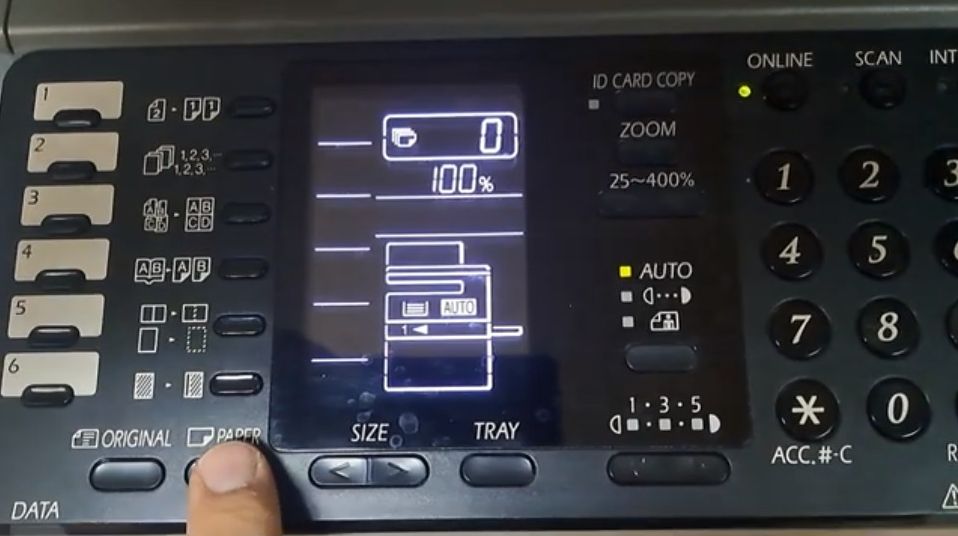
- On the control panel, open the tray / paper size setting and select the size you loaded for that tray.
- Confirm the setting. The copier will now expect the new paper size for that tray.
Watch the video above for the exact menu on the AR-6020 series.
Frequently asked questions
Why does the AR-6020 keep asking for a different paper size?
The size set in the machine does not match the paper actually loaded. Update the tray’s paper size setting to match and the message clears.
Does this apply to both Tray 1 and the bypass tray?
Yes. You set the size separately for Tray 1 and for the bypass (manual) tray.
Do the paper guides matter?
Yes. Set the physical guides to the paper size first, otherwise the sheets can skew or misfeed.