
Now Reading: How to Perform Touch Panel Adjustment on SHARP MX-M365, MX-565, MX-2651, MX-3050, MX-4060 & MX-3051
-
01
How to Perform Touch Panel Adjustment on SHARP MX-M365, MX-565, MX-2651, MX-3050, MX-4060 & MX-3051

How to Perform Touch Panel Adjustment on SHARP MX-M365, MX-565, MX-2651, MX-3050, MX-4060 & MX-3051
If the touchscreen on your SHARP multifunction printer is not responding correctly, registers the wrong position, or feels slow and inaccurate, a touch panel adjustment (calibration) may solve the issue.
In this guide, I will show you how to perform the touch panel adjustment procedure on models such as:
-
MX-M365
-
MX-565
-
MX-2651
-
MX-3050
-
MX-4060
-
MX-3051
This method applies to most SHARP MX series machines with similar control panels.
Common Touch Screen Problems
Before replacing the panel or ordering parts, try calibration. This procedure can fix:
✔ Touch screen not responding
✔ Incorrect touch position
✔ Delayed response
✔ Display calibration errors
✔ Inaccurate button selection
In many cases, calibration restores full functionality.
Step-by-Step: SHARP Touch Panel Adjustment Procedure
Follow these steps carefully:
-
Enter Service Mode.
-
Navigate to the Touch Panel Adjustment / Calibration option.
-
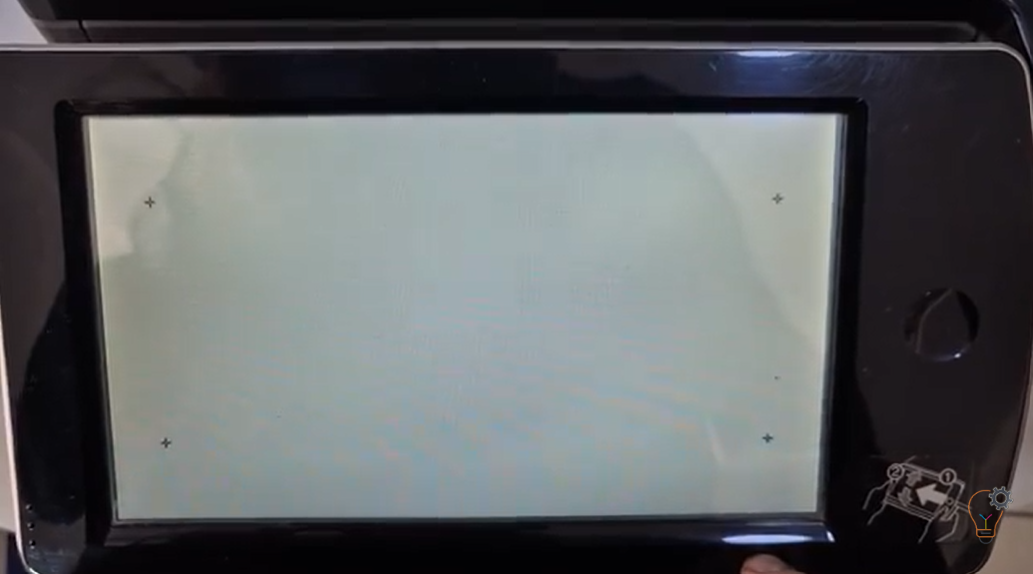
Follow the on-screen crosshair instructions.
-
Tap accurately in the center of each target point.
-
Confirm and save the settings.
-
Restart the machine if required.
⚠️ Important: Always tap precisely in the center of each calibration mark. Inaccurate tapping may worsen the issue.
Watch the Full Video Tutorial
In this video, I demonstrate the complete procedure step by step:
This video shows the real service menu process on SHARP MX series models, making it easy to follow even for less experienced technicians.
When Should You Replace the Touch Panel?
If calibration does not fix the problem, the issue may be caused by:
-
Faulty touch digitizer
-
Damaged LCD panel
-
Control board issue
-
Loose internal connections
Always try calibration first before replacing expensive components.
Touch panel adjustment is a simple but essential maintenance procedure for SHARP multifunction printers. Many technicians overlook this step and immediately suspect hardware failure.
Frequently asked questions
What is a Sharp touch panel adjustment?
It is a calibration that realigns where the screen registers your touch, fixing a panel that responds in the wrong spot or feels inaccurate.
When should I calibrate the touch panel?
Calibrate when buttons are hard to press, the wrong item is selected, or the display feels slow after a firmware update or panel replacement.
Which models does this cover?
The same procedure applies to the Sharp MX-M365, MX-565, MX-2651, MX-3050, MX-4060 and MX-3051.