

Now Reading: Enable USB port on SHARP BP-50C26
1
-
01
Enable USB port on SHARP BP-50C26

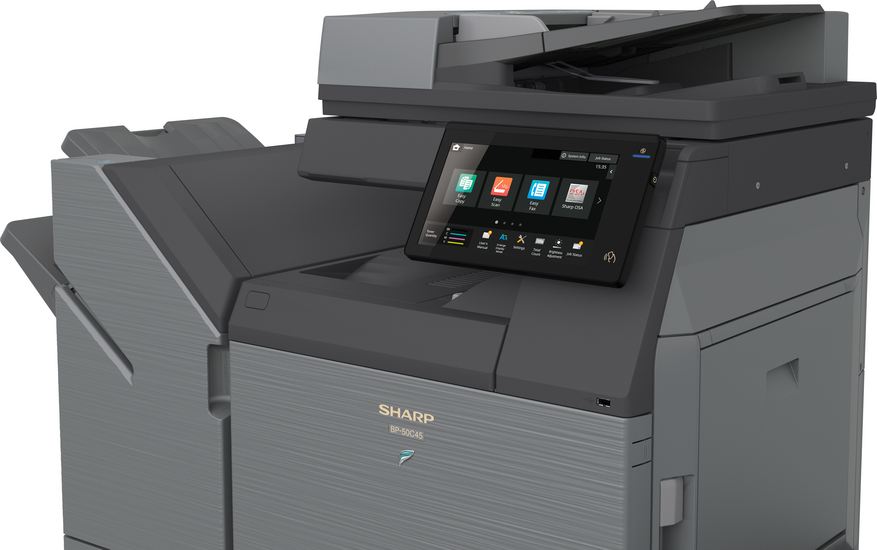
Enable USB port on SHARP BP-50C26
By default the USB port (Type B) is disabled on this model. To enable the USB port on the Sharp BP-50C26, you enter simulation (service) mode and switch it on. Here are the exact steps.
How to enable the USB port on the Sharp BP-50C26
- Put the machine in Home mode.
- Double-tap the Home tab, then press the version number (Ver…).
- Enter the sequence: [#] → [*] → [C] → [*].
- Enter SIM 26-50: 26 → Start → 50 → Start.
- Press the down arrow to “I: USB DEVICE”, press 1, then Start.
- Press Exit to leave simulation mode.
- Install the printer driver from the official Sharp website.
Watch the video
You can watch the full procedure here:
Frequently asked questions
Why is the USB port disabled on the BP-50C26?
Sharp disables the USB host port by default on many BP models. It must be enabled in simulation mode before printing over USB.
Do I still need to install a driver?
Yes. After enabling the port, install the latest driver for the BP-50C26 from the official Sharp website.
What is simulation mode?
It is the machine’s service menu used to change settings such as ports and counters.
Related guides
Related Posts
Previous Post
Next Post
Loading Next Post...