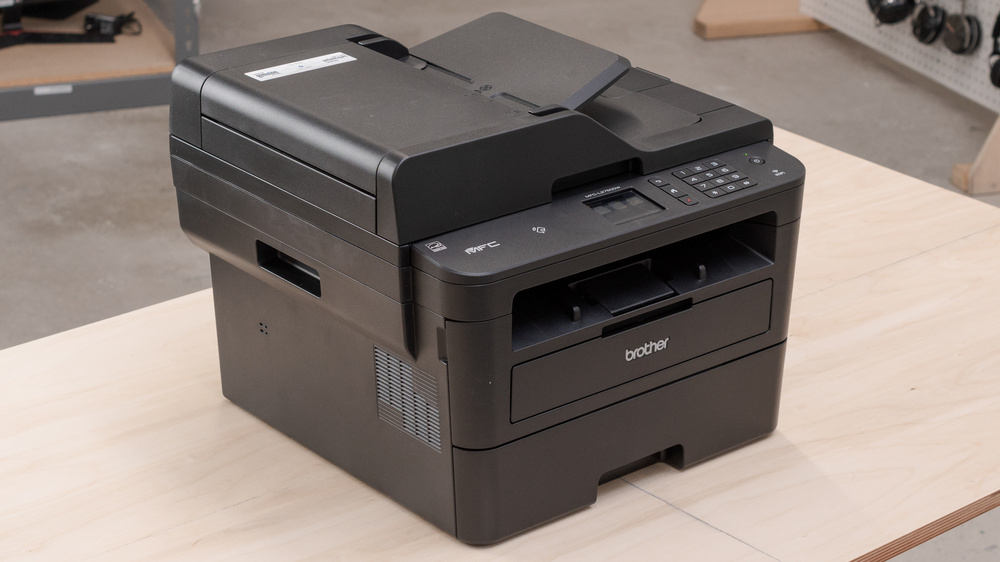

Now Reading: How to Reset the “Replace the Toner” Message on Brother MFC-L2712 Printer
-
01
How to Reset the “Replace the Toner” Message on Brother MFC-L2712 Printer

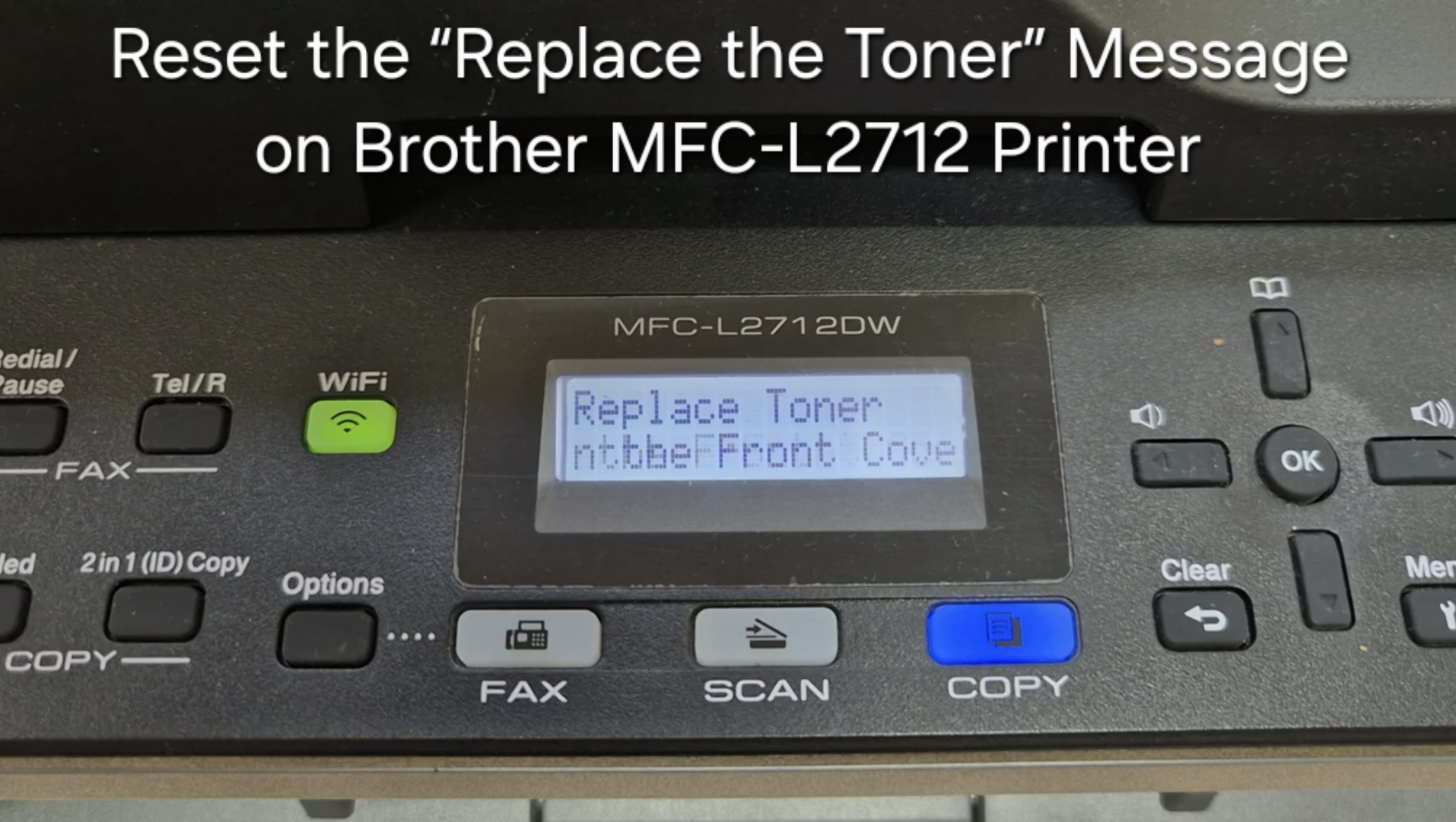
How to Reset the “Replace the Toner” Message on Brother MFC-L2712 Printer
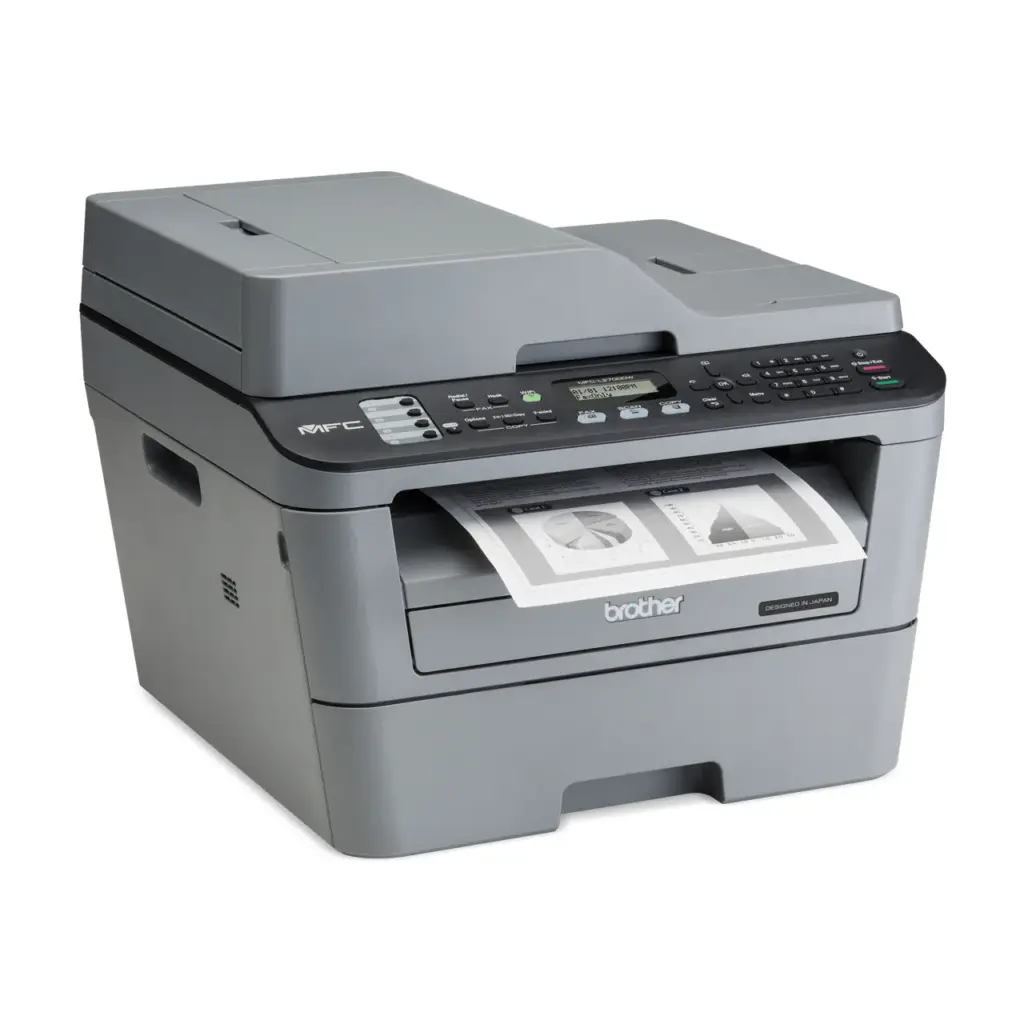
If your Brother MFC-L2712 displays the “Replace the Toner” message, you can often clear it by resetting the toner counter. Follow the steps below to perform a manual reset. This does not refill toner; it only resets the page counter.
Step-by-Step Reset Procedure
- With the front cover open, press the Clear or Back button on the control panel.
- The display should show a Reset Menu or similar option.
- Use the arrow keys to select the toner type:
- TNR-STD – for standard toner (for example TN-730).
- TNR-HC – for high-yield toner (for example TN-760).
- Press OK to confirm the selection.
- Press the Up Arrow (▲) to confirm and start the reset.
- When the display shows Accepted or Reset Complete, close the front cover.
After closing the cover the printer should return to ready mode and the “Replace the Toner” message should disappear.
Video Tutorial
Watch the step-by-step process here: https://youtu.be/zs3j0kOyMNw?si=bnYMYxWukyZJtWYM
Notes and Troubleshooting
- This procedure resets the toner page counter only. If print quality is faded, the toner cartridge may be physically empty and must be replaced.
- Third-party or refilled toner cartridges may require a manual reset because their chips do not always reset automatically.
- Ensure the cartridge is correctly installed and the front cover is fully closed. The printer may take a few seconds to return to ready state.
- If the message persists after a correct reset, try repeating the process and double-check you selected the correct toner type. If problems continue, consult Brother support or consider replacing the toner cartridge.
Frequently asked questions
Does the Brother MFC-L2712 toner reset add more toner?
No. The reset only clears the page counter so you can keep printing. If pages look faded, the cartridge is physically low and should be replaced.
Which option should I choose, TNR-STD or TNR-HC?
Choose TNR-STD for a standard-yield cartridge (for example TN-730) and TNR-HC for a high-yield cartridge (for example TN-760).
The message came back — what now?
Repeat the reset and make sure you selected the correct toner type and fully closed the front cover. If it persists, the cartridge may need replacing.