

Now Reading: Reset drum or toner on BROTHER MFC-L2700dw
-
01
Reset drum or toner on BROTHER MFC-L2700dw

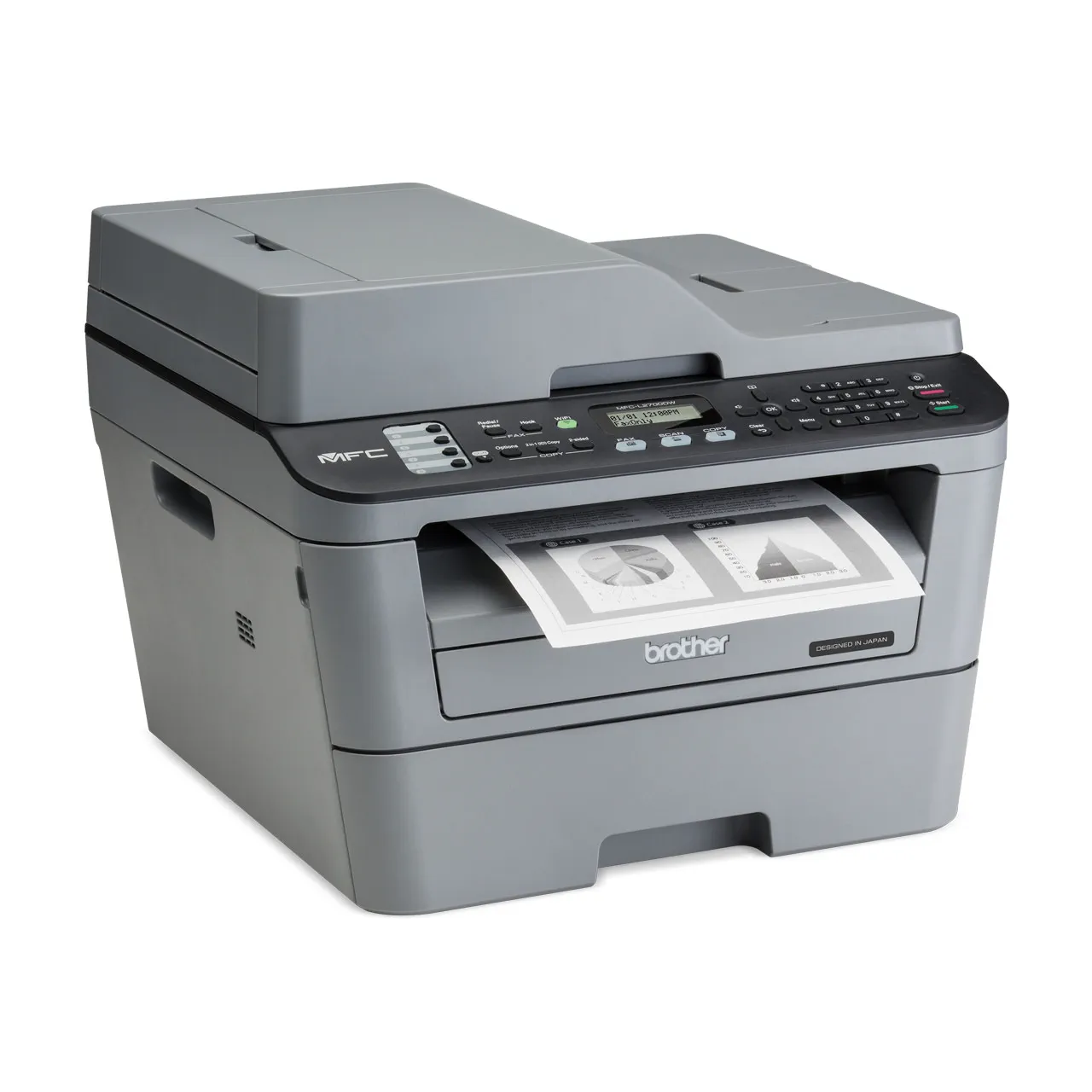
Reset drum or toner on BROTHER MFC-L2700dw
If your Brother MFC-L2700DW keeps asking you to replace the drum unit or toner even after you installed a new one, you need to reset the counter. This guide covers both the Brother MFC-L2700DW drum reset and the toner reset, with the exact button steps for each.
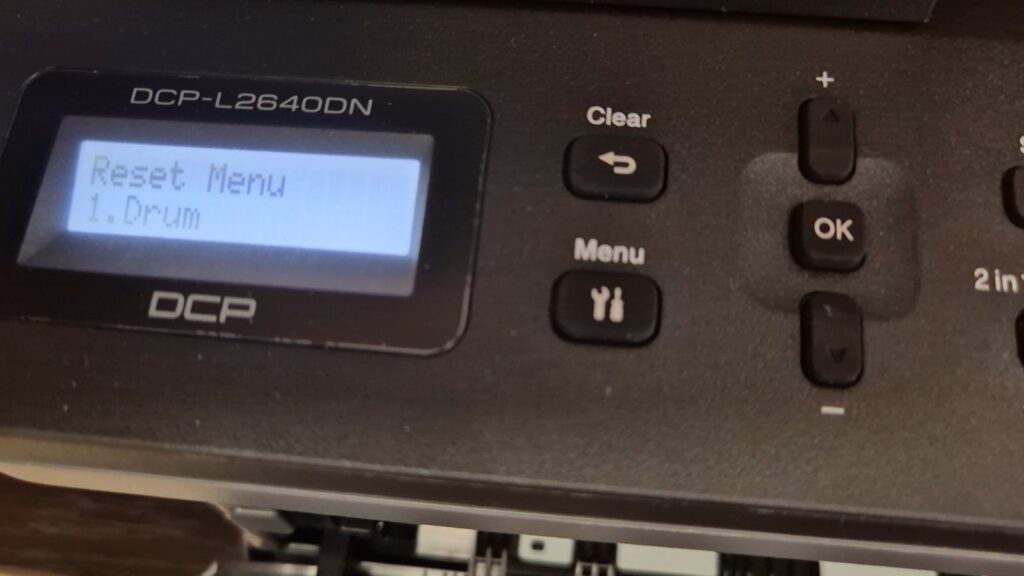
How to reset the drum counter on the Brother MFC-L2700DW
1. Make sure that the machine is turned on. 2. Open the front cover. 3. Press and hold OK for 2 seconds. 4. Press the Up arrow key or 1 to reset the drum counter. 5. Close the front cover. If you need to reset the toner, please follow these steps to clear the message:
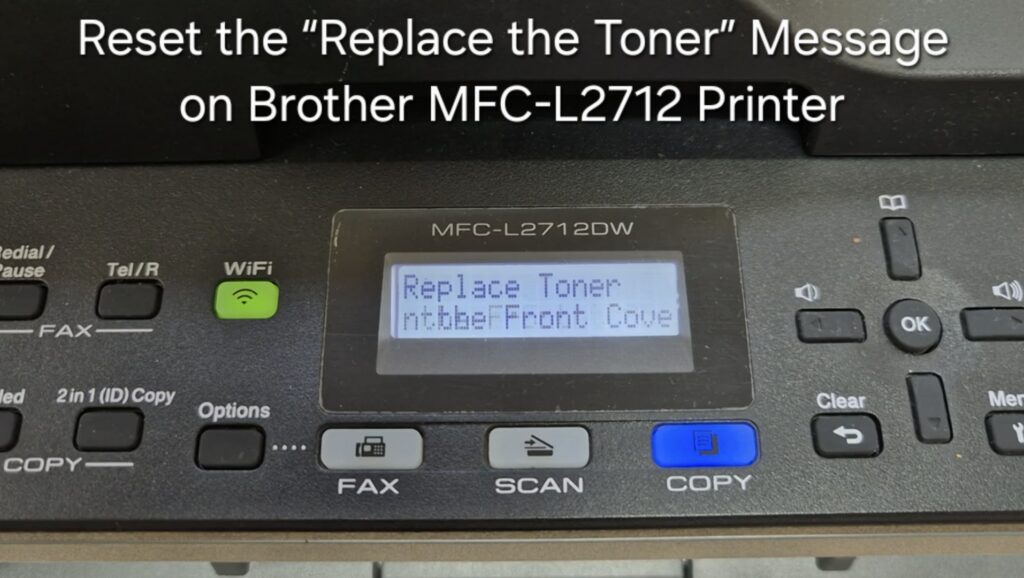
How to reset the toner on the Brother MFC-L2700DW
1. Open the front cover and leave open while completing the following steps. 2. Display should read “Front Cover open”. 3. Hold the ‘OK’ button down for a few seconds. 4. Display should read “Replace Drum”. 5. DO NOT follow prompts on screen. 6. Type in * 0 0 (Star Zero Zero) on the keypad. 7. Close the cover. Your toner is now reset.
Frequently asked questions
Should I reset the drum or the toner?
Reset the drum when the display asks about the drum unit, and reset the toner when it asks about toner. They are separate counters with the separate steps shown above.
Does resetting fix print-quality problems?
No. Resetting only clears the counter. Streaks or fading usually mean the drum unit itself needs replacing.
How many pages does the drum last?
The drum unit is rated for roughly 12,000–15,000 pages, depending on usage.
Related guides
Leave a reply
You must be logged in to post a comment.
Pingback: Drum reset for BROTHER MFC-L2750DW | Copiers Printers Tricks
Pingback: Drum reset for BROTHER MFC-L2750DW - PrintFixLab