

Now Reading: How to solve the problem when the warning light is just blinking on Sharp AR-6020
-
01
How to solve the problem when the warning light is just blinking on Sharp AR-6020

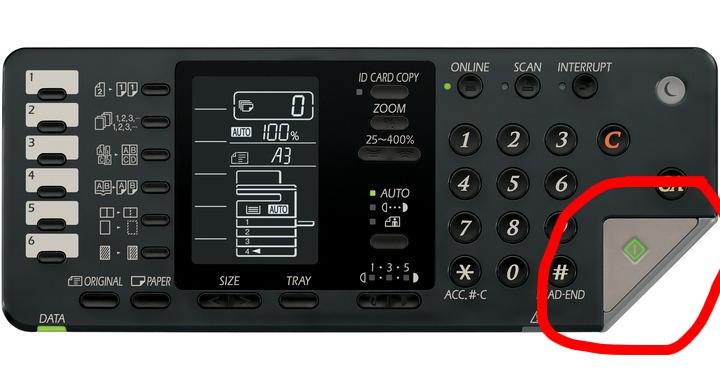
How to solve the problem when the warning light is just blinking on Sharp AR-6020
If the warning light on the Start button is blinking on the Sharp AR-6020 / AR-6023 and you can print but cannot copy, the problem is usually with the scanner (exposure) system — either the exposure unit is not working correctly or the optics are dirty.
What causes the blinking warning light?
When copying fails but printing still works, the copier cannot read the original. This normally points to the scanning optics: dust or toner on the scanner glass, mirrors or lens, or a fault in the exposure lamp/assembly.
How to fix it
- Turn the machine off before cleaning.
- Clean the scanner glass (document glass) with a soft, lint-free cloth.
- Carefully clean the optical mirrors and lens of the exposure/scanner unit to remove dust and toner residue.
- Turn the machine back on and try to copy.
- If the light still blinks, the exposure lamp or scanner assembly may be faulty and need service.
Frequently asked questions
Why can I print but not copy?
Printing does not use the scanner. Copying does, so a scanning/exposure fault stops copies while prints still work.
What should I clean?
The document glass and the optical mirrors and lens of the scanner unit. Use a soft, dry, lint-free cloth — avoid scratching the surfaces.
What if cleaning does not help?
The exposure lamp or scanner board may be defective and require a technician.
Related guides
Leave a reply
You must be logged in to post a comment.
Pingback: Change the paper tray's size setting on SHARP AR-5618/5620 | Copiers Printers Tricks
Pingback: Greasy hair? Solve this big problem in a simple way | Real Tips and Tricks
Pingback: Change the paper tray's size setting on SHARP AR-5618/5620 | Print Copy Tech
Pingback: Change the paper tray's size setting on SHARP AR-5618/5620 - PrintFixLab