

Now Reading: How to clear error code H5-01 on Sharp models
-
01
How to clear error code H5-01 on Sharp models

How to clear error code H5-01 on Sharp models
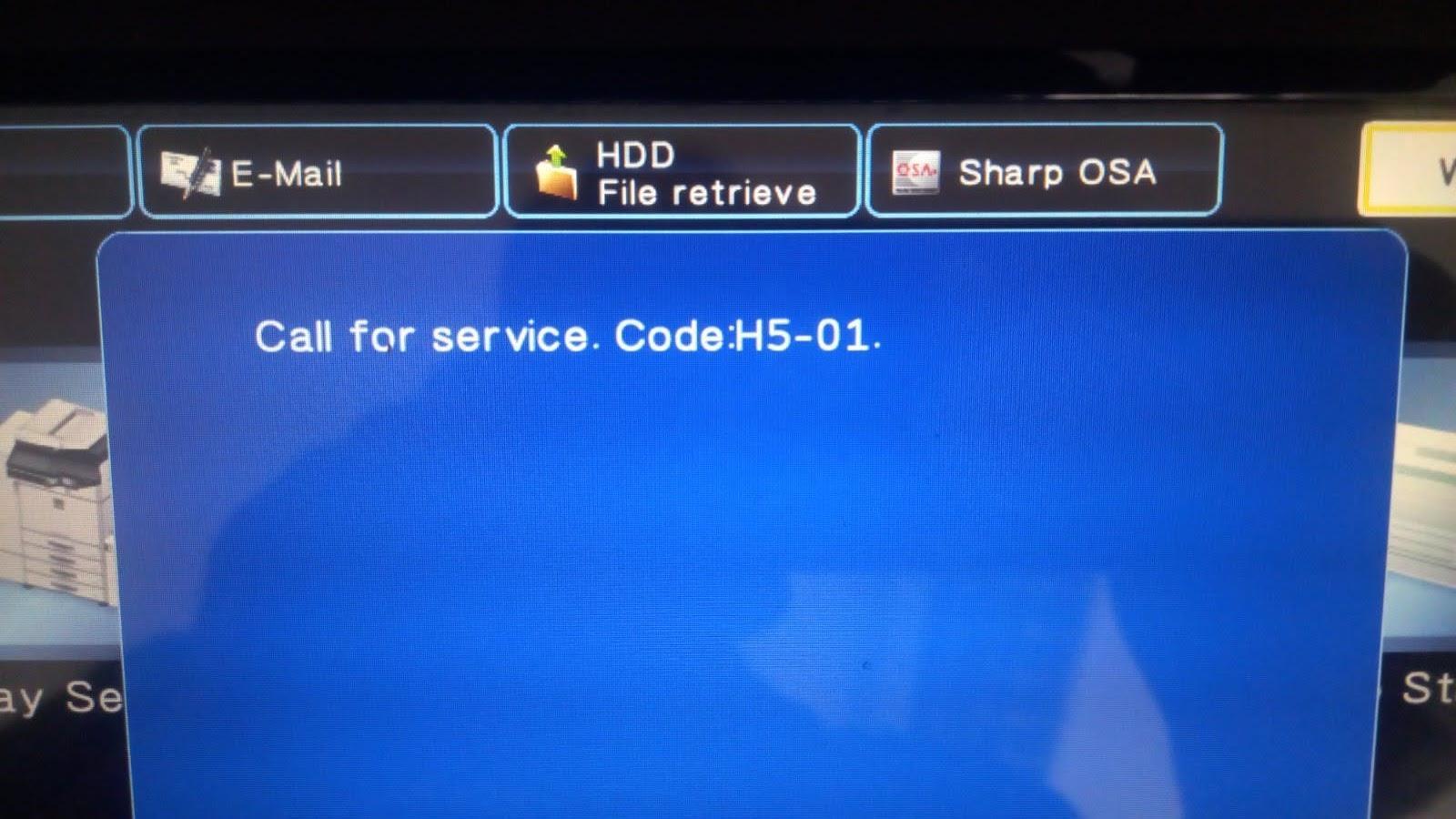
H5-01 is a common error code on many models on Sharp copiers. It indicates that your machine has had 5 jams in a row. It can be cleared out, but your machine likely needs some maintenance to prevent further issues. Or it might be time to consider updating your office equipment to something new. In either case, feel free to contact us for your options. H5-01 Trouble Error Code Clear on Sharp Copier – Step-By-Step Instructions: – Make sure you’ve gotten all of the jammed paper out of the machine – On the number pad, touch P, *, C, * in rapid succession. – On newer Sharp copiers (2014-present) you’ll have to double tap the “Home” button to the right of the touch screen to bring up the number pad. – The machine will enter a simulation mode, either touch the #14 on the touch screen, or type 14 on the number pad, then touch the B&W Start button (or mono on newer machines). – Touch Execute, then Yes. – It will take a moment to process, sometimes you will have a progress bar, then the machine will reboot itself. If it doesn’t reboot itself after a minute or two, go ahead and touch CA to reboot it. If all else fails, turn it off manually. – The Sharp copier with the H5-01 should be reset at this point, and you should be able to print/copy again. Again, if you need someone to come out and take a look at your system, request a service call.
Frequently asked questions
What does the Sharp H5-01 error mean?
H5-01 means the copier has detected five paper jams in a row. It stops and must be cleared after you remove all jammed paper.
How do I clear H5-01?
Remove every piece of jammed paper, then enter simulation mode (P * C *, double-tapping Home on newer models) and run SIM 14 to reset the jam counter.
Why does H5-01 keep coming back?
If the underlying jam cause is not fixed — worn feed/pickup rollers, a paper-path sensor or poor paper — the machine will hit five jams again and re-trigger H5-01. Address the jam source, not just the code.
Related guides
Leave a reply
You must be logged in to post a comment.
Pingback: Clear error code E000001 on CANON IR2520/2525/2530 | Copiers Printers Tricks