When the Konica Minolta bizhub 20 shows “Replace Parts, Drum”, the drum counter has reached its limit. After fitting a new drum unit, you have to reset the drum counter from the control panel, otherwise the message stays on the display.

Applies to / What you’ll need
Applies to: Konica Minolta bizhub 20.
What you’ll need: a new drum unit fitted in the machine. Reset the counter only after replacing the drum.
How to reset the drum counter
- Open the front cover and keep it open.
- Press the [Clear/Back] button while the front cover is open.
- The display shows “Replace Drum?” with “1. Yes 2. No”. Press [1].
- Press [OK]. The counter resets and “Accepted” appears on the display.
- The machine returns to the “front cover open” state. Close the front cover.
Troubleshooting notes
- “Replace Drum?” does not appear: make sure the front cover is fully open when you press [Clear/Back].
- Message comes back soon after the reset: check that the drum is seated correctly; an old drum with a reset counter can still give poor print quality.
- Grey background or repeating marks: these are drum symptoms – replace the drum rather than only resetting the counter.
FAQ
Can I reset the counter without replacing the drum? You can, but print quality will keep dropping. Reset only after fitting a new drum.
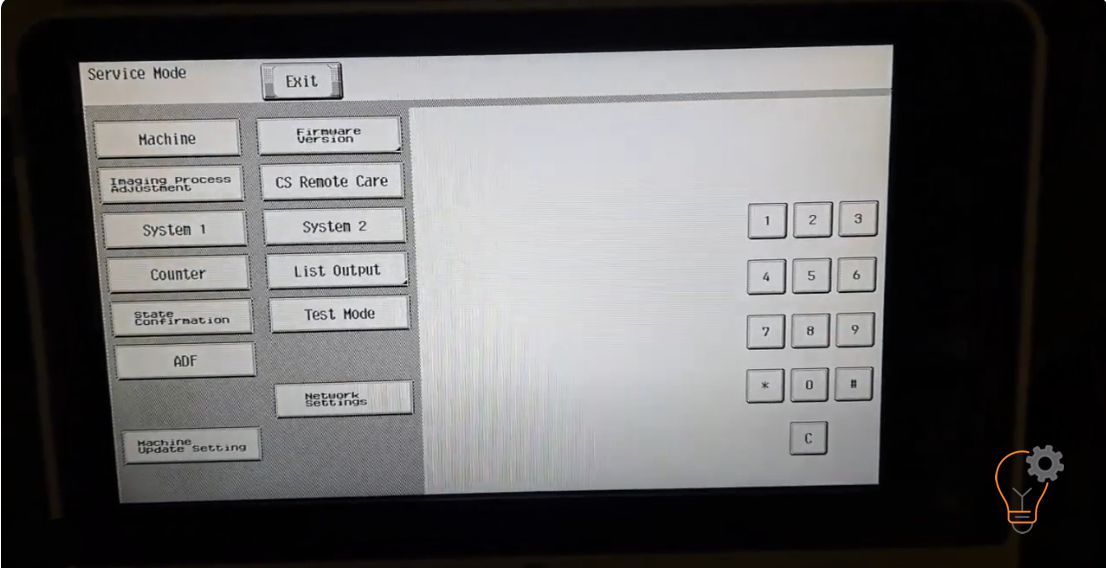
Do I need service mode? No. The reset is done from the normal control panel.
Related guides
- Clear error C03FF on Konica Minolta bizhub 215
- Enter service mode on Konica Minolta bizhub 165 / 185
- Drum reset on Brother DCP-L2510D / MFC-L2712DW
Browse all drum reset guides or all Konica Minolta guides.