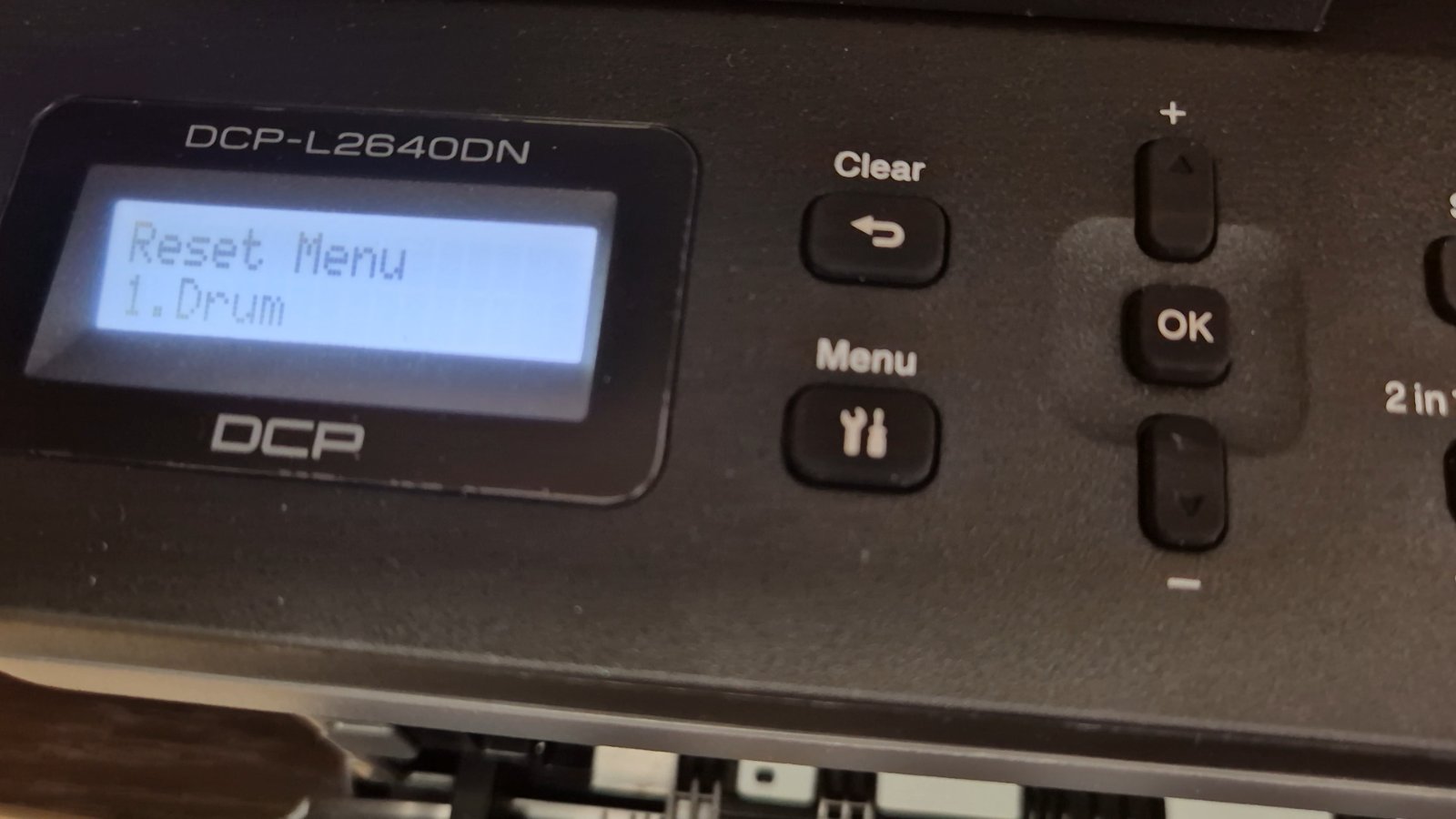
When the Brother DCP-7055 shows “Replace Drum”, fit a new drum unit (DR2200) and then reset the drum counter. Without the reset the message stays on the display, even with a brand-new drum.

Applies to / What you’ll need
Applies to: Brother DCP-7055.
What you’ll need: a new drum unit DR2200 fitted in the printer.
How to reset the drum counter
- Replace the drum unit with a new DR2200.
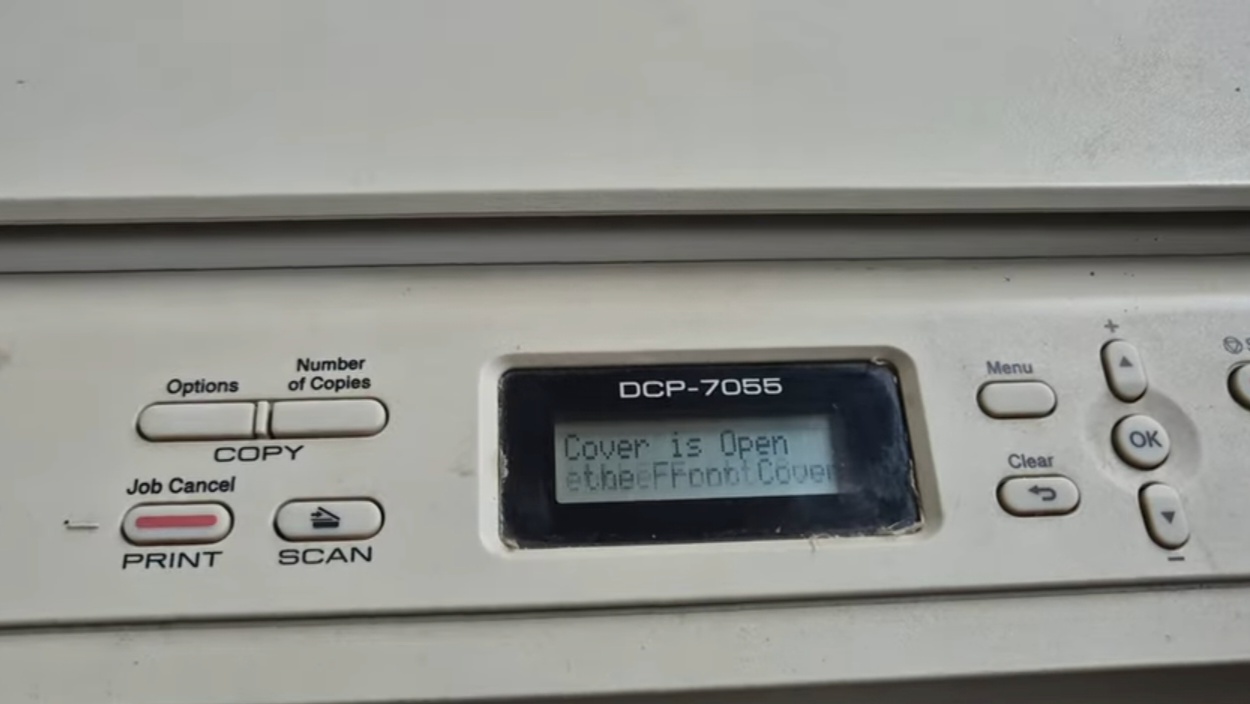
- Open the front cover.
- Press the Clear button.
- Press the Up arrow (+).
- Close the front cover. The “Replace Drum” message is cleared.
Troubleshooting notes
- “Replace Drum” is still shown: repeat the steps with the front cover fully open, and press the buttons only after the cover is open.
- “Replace Toner” instead of “Replace Drum”: that is a toner counter message, not a drum one – it needs a different procedure.
- Repeating marks or grey background: these are drum symptoms; resetting the counter on an old drum will not fix print quality.
FAQ
Which drum does the DCP-7055 use? The Brother DR2200 drum unit.
Can I reset the counter on the old drum? The message will clear, but print quality will keep getting worse. Replace the drum first.
Related guides
- Brother MFC-L2750DW drum reset
- Brother DCP-1510 / 1512 drum reset
- Brother HL-1110 / HL-1112 drum counter reset
Browse all drum reset guides or all Brother guides.