

Now Reading: Reset drum counter on BROTHER MFC-L5500 / 5700 / 5750
-
01
Reset drum counter on BROTHER MFC-L5500 / 5700 / 5750

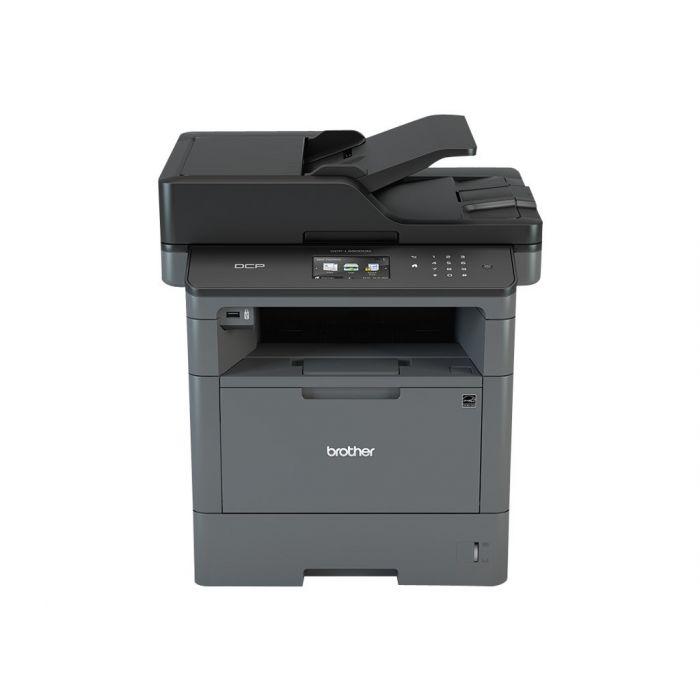
Reset drum counter on BROTHER MFC-L5500 / 5700 / 5750
After you replace the drum unit on the Brother MFC-L5500, the printer keeps showing a drum warning until you reset the drum counter. This Brother MFC-L5500 drum reset guide shows the exact touchscreen menu steps — the same steps also work on the MFC-L5700 and MFC-L5750.
How to reset the drum counter on the Brother MFC-L5500 / L5700 / L5750
- Make sure the machine is turned on.
- Press Settings > All Settings > Machine Info. > Parts Life.
- Press and hold Drum Life until the display message changes.
- Press Yes.
- Press Home. The drum counter is reset and the warning clears.
Watch the video
You can watch the full procedure in this short video for better understanding:
Troubleshooting
If the Parts Life menu does not appear, scroll within Machine Info. or update the touchscreen firmware. If the drum warning returns shortly after resetting, the drum unit may be worn and need replacing.
Frequently asked questions
Does resetting the drum fix print quality?
No. The reset only clears the counter. Persistent streaks or fading usually mean the drum unit still needs replacing.
Is the drum reset the same as the toner reset?
No. This resets only the drum counter, not the toner cartridge.
How many pages does the drum last?
The drum unit on this MFC-L5 series is rated for roughly 30,000–50,000 pages, depending on usage.
Related guides
Leave a reply
You must be logged in to post a comment.
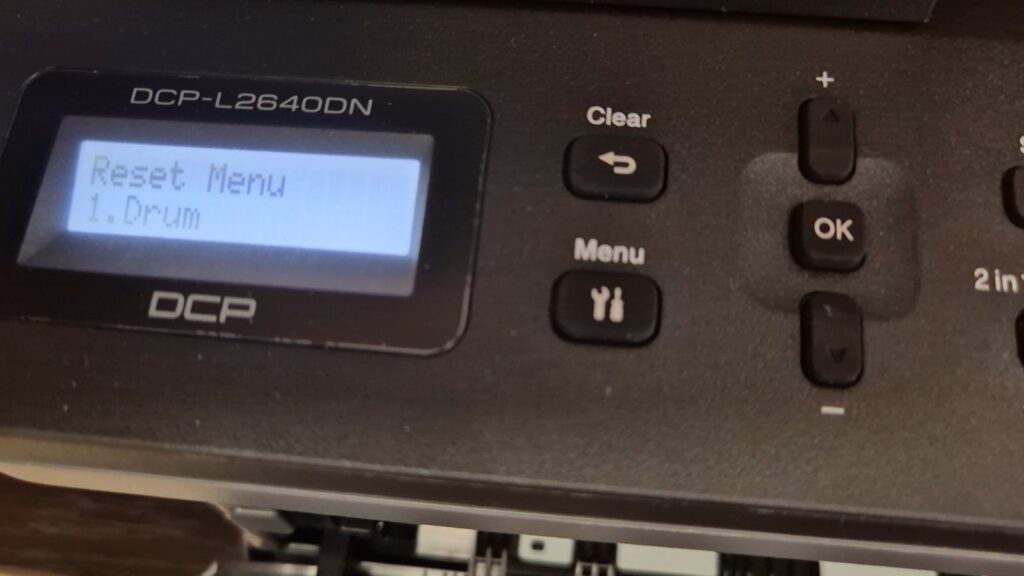
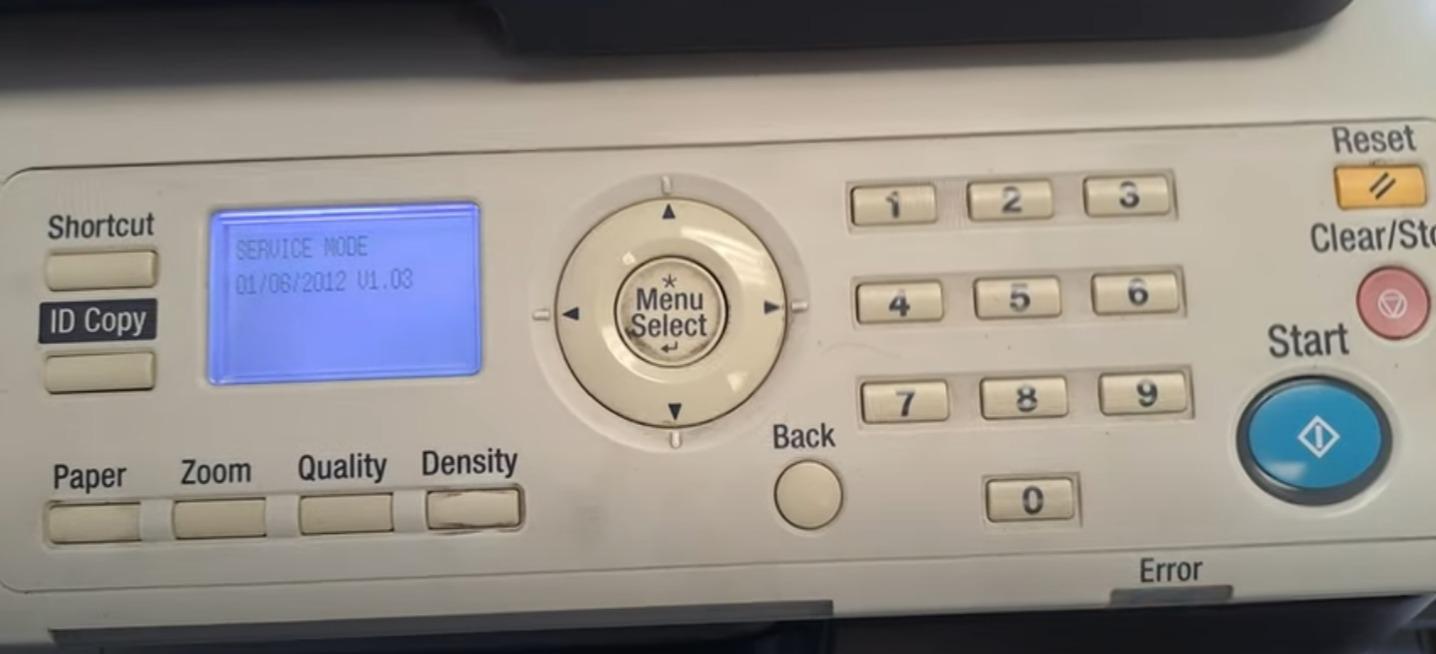
Pingback: Enter in SERVICE MODE on KONICA MINOLTA bizhub 165/185 | Copiers Printers Tricks
Pingback: Drum reset for BROTHER DCP-L2510D / MFC-L2712DW | Copiers Printers Tricks
Pingback: How to reset drum counter on Brother HL-L6250DW? - Copiers Printers Tricks
Pingback: Enter in SERVICE MODE on KONICA MINOLTA bizhub 165/185 | Print Copy Tech
Pingback: How to reset drum counter on Brother HL-L6250DW? | Print Copy Tech
Pingback: How to reset drum counter on Brother HL-L6250DW - PrintFixLab
Pingback: Enter in SERVICE MODE on KONICA MINOLTA bizhub 165/185 - PrintFixLab
Pingback: Drum reset for BROTHER DCP-L2510D / MFC-L2712DW - PrintFixLab