If you need to check print quality or prove that a Sharp BP-20M22 or BP-20M24 prints correctly without a computer, the quickest way is the built-in PCL self test pattern. It is printed from simulation mode with SIM 64-05 and takes less than a minute.

When to print the self test pattern
- To check print quality (streaks, light print, spots) independent of the PC, driver or network.
- After replacing toner, drum or developer, to confirm the engine prints normally.
- To prove to a customer that the machine itself works and the problem is on the computer side.
Applies to / What you’ll need
Applies to: Sharp BP-20M22 and BP-20M24.
What you’ll need: A4 or Letter paper in the tray and access to the control panel. Simulation mode is a service function – change nothing else while you are in it.
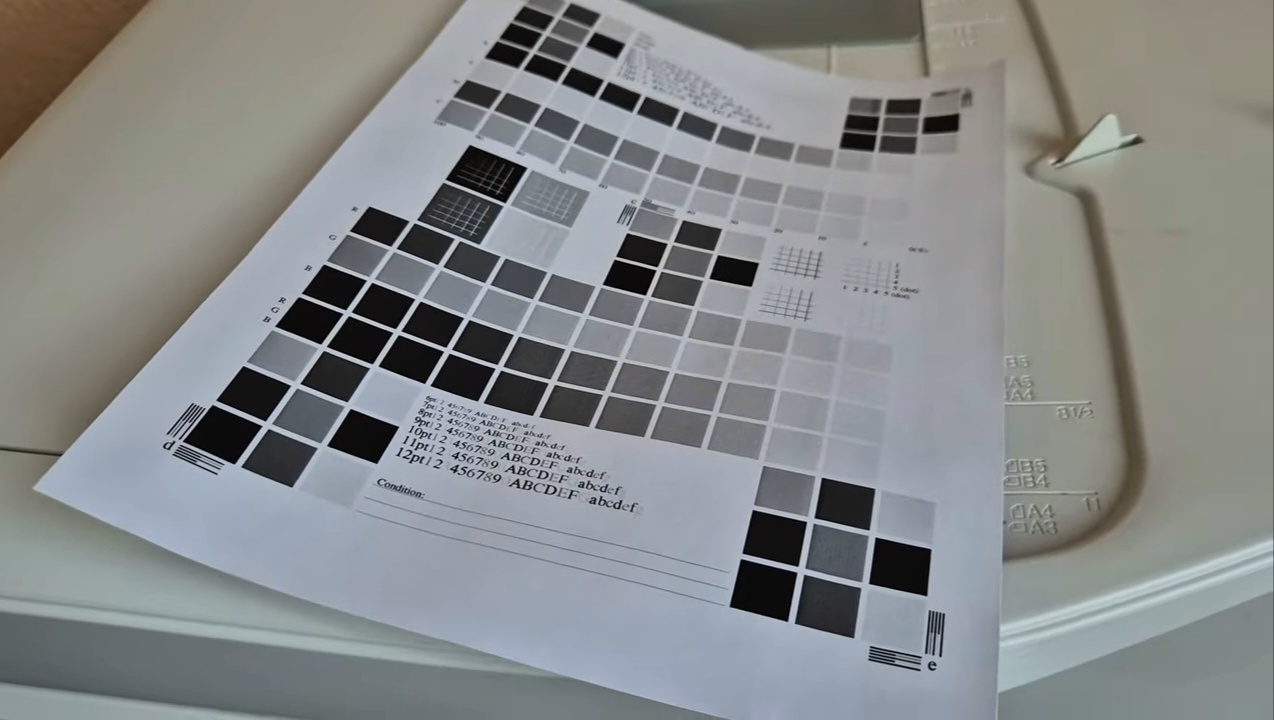
How to print the self test pattern (SIM 64-05)
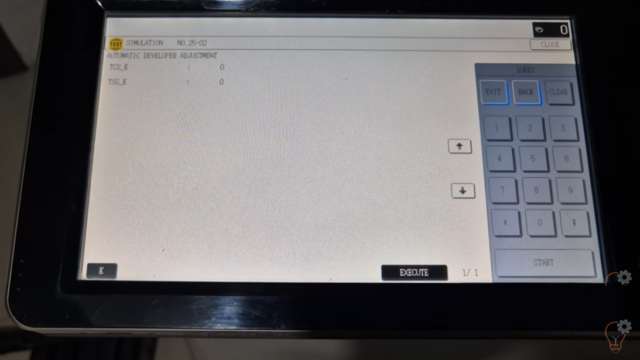
- Enter simulation mode: press
#,*,C,*on the keypad. - Type
64and press Start. - Type
1and press Start. - Press Start again – the self test pattern prints.
- Exit simulation mode when you are done so the machine returns to normal operation.
Troubleshooting notes
- The page prints but has streaks or faded areas: the problem is in the engine (drum, developer, transfer), not in the driver.
- Simulation mode does not open: enter the key sequence slowly from the home screen, with no job running.
- The test page is clean but PC prints are not: check the driver, cable or network – see the USB guide below.
FAQ
Do I need a computer to print the self test? No. SIM 64-05 prints the pattern from the machine itself.
Is it safe for a normal user? Printing the test pattern is safe. Do not change other simulation values unless you know what they do.
What does PCL mean on the test page? It is the printer language the machine uses; the page also shows basic settings of the printer.
Related guides
- Enable USB printing on Sharp BP-20M22 / M24 / M28 / M31
- Enable USB port on Sharp BP-50C26
- Print a self test page on Epson LX-350
Browse all test page guides or all Sharp guides.