
Now Reading: How to Print a Self Test Page on Epson LX-350
-
01
How to Print a Self Test Page on Epson LX-350

How to Print a Self Test Page on Epson LX-350
If you are troubleshooting your Epson LX-350 dot matrix printer or simply want to check its performance, printing a self test page is one of the easiest and most effective methods. This built-in function allows you to verify that the printer hardware is working properly without needing a computer.
Why Print a Self Test Page on Epson LX-350?
The self test feature is useful for several reasons:
- Check print quality and alignment
- Verify that all printer components are functioning correctly
- Identify issues without connecting to a PC
- Test ribbon and paper feed performance
Step-by-Step Guide to Print a Self Test Page
Follow these simple steps to print a self test page on your Epson LX-350:
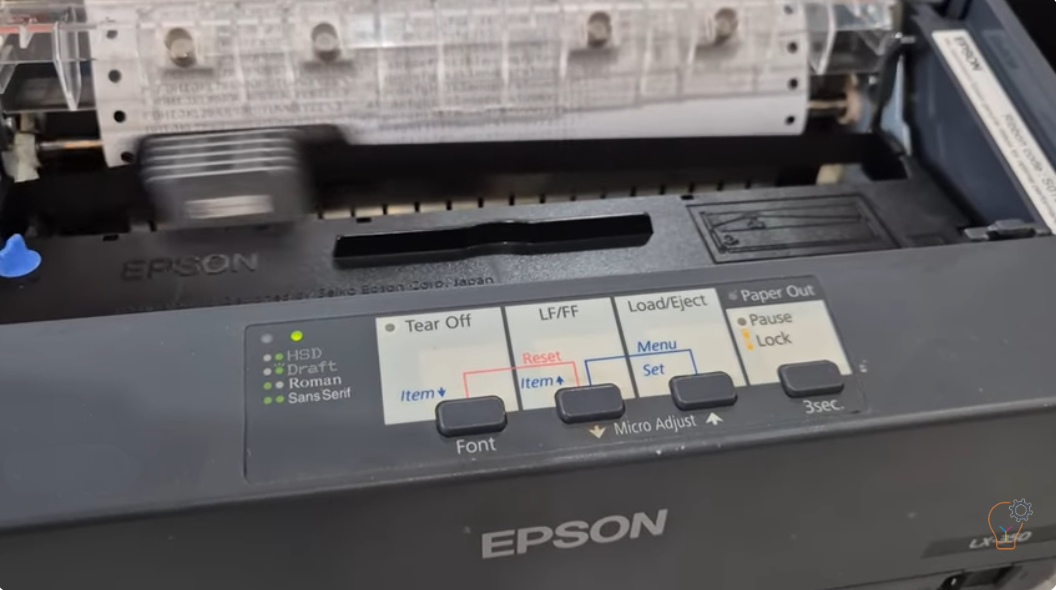
- Make sure the printer is turned off.
- Load paper into the printer.
- Press and hold the LF/FF button or the Load/Eject button.
- While holding the button, turn on the printer.
- Release the button once the printer starts printing.
The printer will begin printing a self test page using Draft mode if the LF/FF button is used. https://www.youtube.com/watch?v=dc3XUUpju9g
Understanding the Self Test Output
The printed test page will display:
- Printer model information
- Character set and font samples
- Current settings and configuration
If the printout is clear and complete, your printer is functioning correctly. If you notice missing lines, faded text, or irregular printing, it may indicate a problem with the ribbon, print head, or paper feed mechanism.
Troubleshooting Tips
- Ensure the ribbon cartridge is properly installed and not worn out
- Check for paper jams or misaligned paper
- Clean the print head if print quality is poor
- Repeat the self test to confirm consistent results
Running a self test page on the Epson LX-350 is a quick and reliable way to diagnose printer issues. Since it does not require a computer, it is especially useful for identifying hardware-related problems. Regular testing can help maintain optimal printer performance and prevent unexpected downtime.
Frequently asked questions
How do I start the self test on the Epson LX-350?
Turn the printer off, load paper, hold the LF/FF (or Load/Eject) button, and switch the printer on. Release the button when it starts printing.
What if the self test print is faded or has missing lines?
That usually points to a worn ribbon, a dirty or damaged print head, or a paper-feed problem. Replace the ribbon and clean the head, then test again.
Do I need a computer to run the self test?
No. The self test is built into the printer and runs without any PC or driver — useful for isolating hardware faults.