

Now Reading: How to Change Language on Epson Stylus OFFICE BX300F/BX305F – Easy Printer Settings Guide
-
01
How to Change Language on Epson Stylus OFFICE BX300F/BX305F – Easy Printer Settings Guide

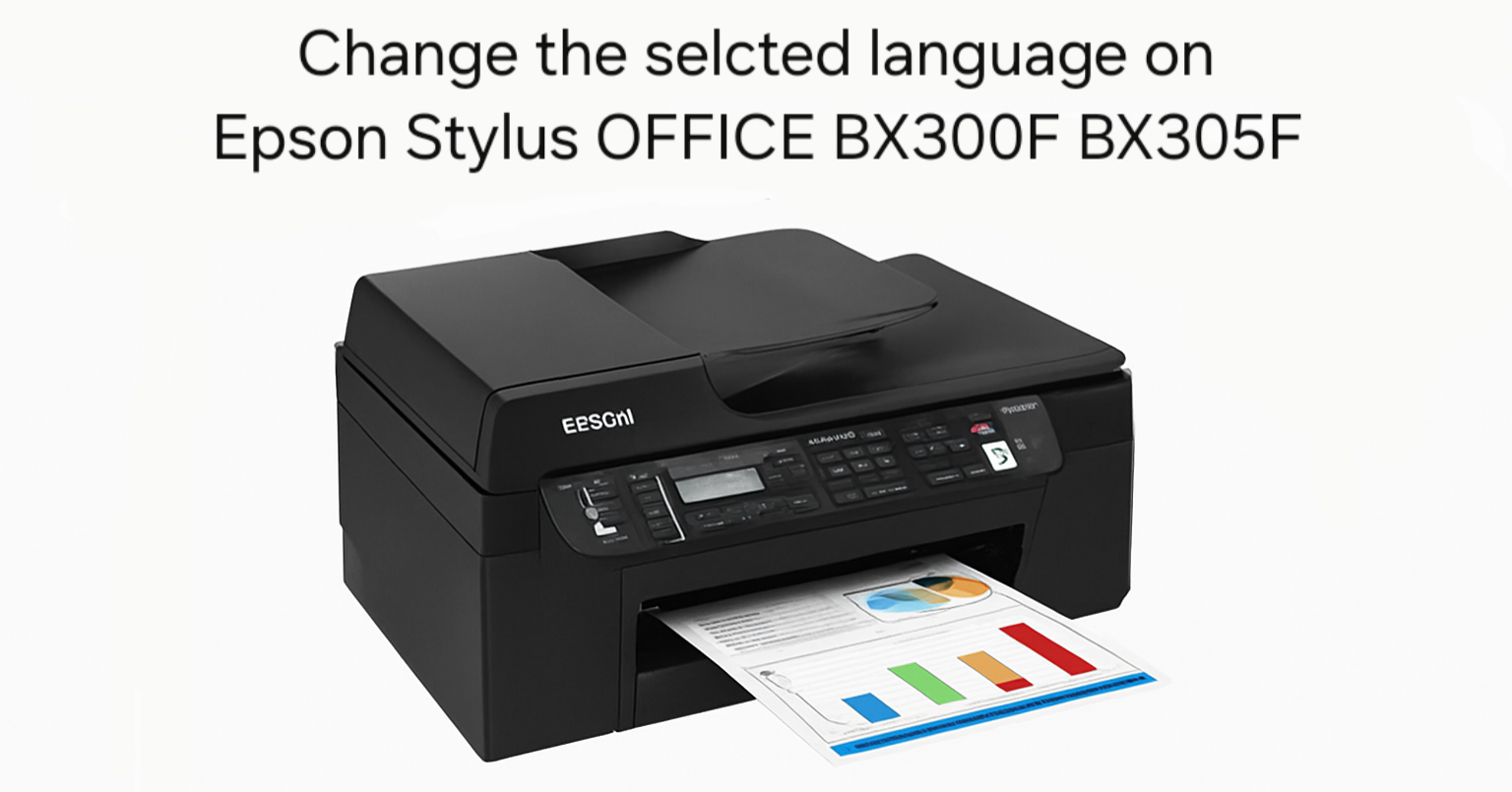
How to Change Language on Epson Stylus OFFICE BX300F/BX305F – Easy Printer Settings Guide
If you’ve recently purchased a second-hand Epson Stylus OFFICE BX300F or BX305F printer and found it set to a language you don’t understand, don’t worry – you’re not alone. Many users encounter this issue, especially when buying used devices or importing printers. Luckily, changing the language settings on your Epson Stylus BX300F/BX305F is a simple process. In this guide, we’ll show you how to change the language on your printer step-by-step, helping you reset it to English or any other preferred language. This solution is ideal for users who want to get their printer up and running without diving into complicated manuals. Whether you’re a home user, office worker, or printer technician, this quick trick can save you time and frustration. No tools or software are needed – just follow the display instructions carefully, and in less than a minute, your Epson Stylus printer will be set to your preferred language. Watch the video below for the full tutorial and see how easy it is to complete this essential printer setup: https://youtu.be/M6ex3y6U5gA
Frequently asked questions
Why is my Epson Stylus Office in the wrong language?
Second-hand or imported units are often set to another language. You can change it back to English (or any language) from the printer’s setup menu — no computer needed.
Does changing the language reset other settings?
No. It only changes the display language; your other settings stay the same.
Which models does this cover?
The Epson Stylus Office BX300F and BX305F use the same menu steps shown in the video.
Related guides
Leave a reply
You must be logged in to post a comment.
Pingback: Scan to PDF - NAPS2 - Free Download | Copiers Printers Tricks
Pingback: Easy Mediterranean Chickpea Salad for a Quick Healthy Lunch | Easy Nutri Recipes
Pingback: Scan to PDF - NAPS2 - Free Download - PrintFixLab