
Now Reading: Downgrade HP OfficeJet Pro 7740 Printer Firmware
-
01
Downgrade HP OfficeJet Pro 7740 Printer Firmware

Downgrade HP OfficeJet Pro 7740 Printer Firmware
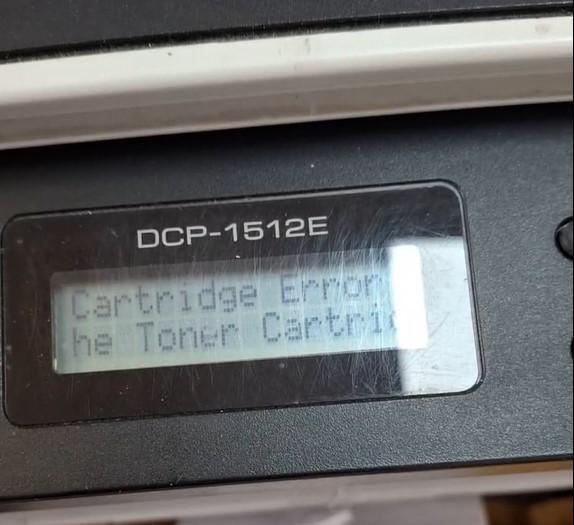
Since 2016, HP has included dynamic security in their firmware update, designed to limit third-party ink cartridges’ use. As per HP, dynamic security-enabled printers are only meant to function with cartridges that have brand-new or repurposed HP chips or electronic circuitry. This feature has been added by them to block non-HP chips, modified, or non-HP electronic circuitry. Printer manufacturers can automatically update your printer’s firmware without your knowledge, especially if it is connected to your Wi-Fi or via a cable directly connected to your computer with an internet connection. The firmware update may impact you if you are receiving error messages like “Cartridge is missing or damaged”, “Remove and reinstall ink cartridge”, “Cartridge not being recognized,” or if your ink cartridges suddenly stop working after initially working flawlessly. Please note that once your firmware has been updated, your printer will only accept OEM or original ink cartridges unless you remove the dynamic security feature, reset printer to its default settings, or download its older firmware version, which will be discussed later in this how to downgrade hp printer firmware article.
Turn off or disable the “Automatically Update Check” function
- Click Setup from the control panel display of the printer.
- Click Printer Maintenance under the Setup menu.
- Click Update the Printer, select Printer Update Options.
- Select Do Not Check and click No.
https://www.youtube.com/watch?v=kPf07-oRx7M Check if your printer is connected to the computer via USB cable or network. Download and run the older version of the firmware installation package on your computer. Click HERE to download it.
Frequently asked questions
What is HP dynamic security?
It is firmware that blocks non-HP or refilled ink cartridges. Since 2016, HP updates can enable it, causing “cartridge missing/damaged” or “not recognized” errors with third-party ink.
Will downgrading the firmware let me use third-party ink again?
Usually yes. Rolling back to an older firmware version (and disabling auto-update) removes the dynamic-security check so compatible cartridges work again.
How do I stop it happening again?
Disable the “Automatically Update” check (steps above) so the printer does not silently re-apply the newer firmware.