

Now Reading: Brother DCP-L5500DN / L5850DW Toner Reset – “Install Toner” Fix
-
01
Brother DCP-L5500DN / L5850DW Toner Reset – “Install Toner” Fix

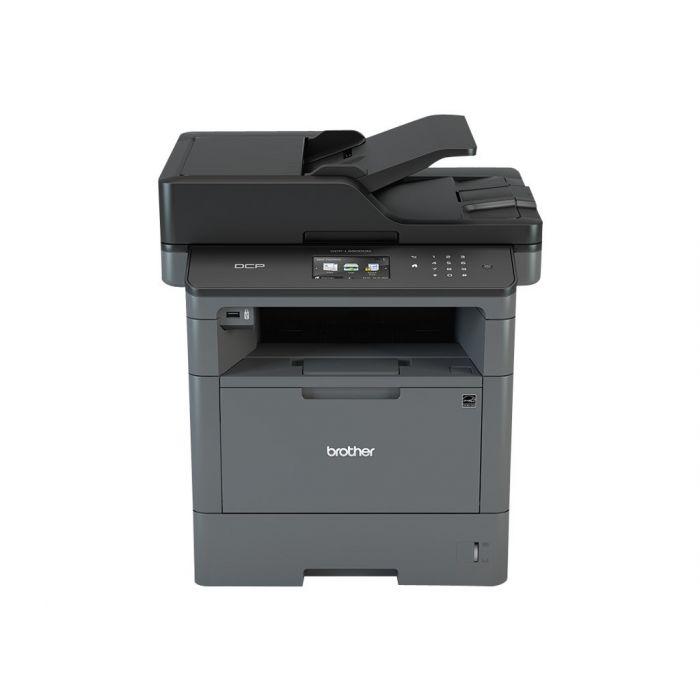
Brother DCP-L5500DN / L5850DW Toner Reset – “Install Toner” Fix
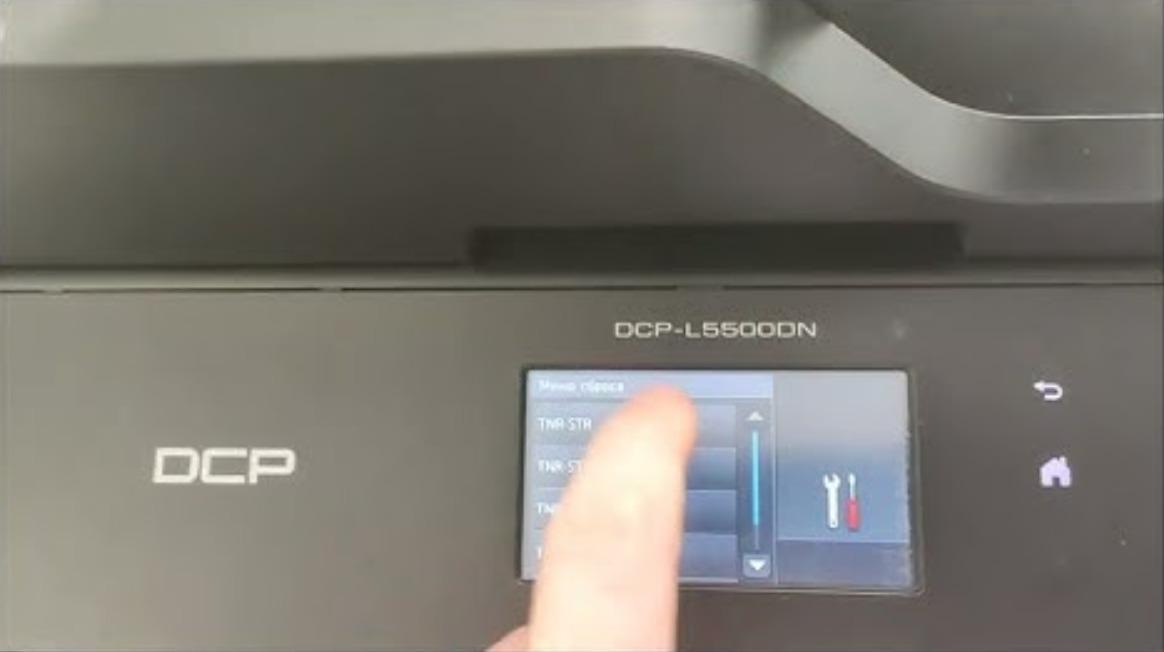
When you change the toner on the Brother DCP-L5500DN or DCP-L5850DW and the machine keeps showing “Change the toner cartridge” or “Install toner”, you need to run a hidden reset so the printer registers the new cartridge. Here is the exact Brother DCP-L5500DN toner reset procedure.
How to reset the toner on the Brother DCP-L5500DN / L5850DW
- Open the front cartridge door.
- Press and hold the invisible “#” key for about 5 seconds — the reset menu appears.
- Select the appropriate toner code for your cartridge and press Reset.
- Tap the Clear or Back button, then close the access door.
The “Change the toner cartridge” / “Install toner” message should now clear and the printer will return to ready.
Troubleshooting
The “#” key is not printed on the panel — it is a touch area on the toner-reset screen, so press firmly where the reset menu expects it. If the message returns, reseat the cartridge, make sure it clicks into place, and repeat the reset.
Frequently asked questions
Where is the “#” key?
It is a hidden (invisible) touch key that only responds on the toner reset screen once the front door is open. Hold that spot for about five seconds.
Which code do I select?
Choose the code that matches your cartridge type (standard or high-yield) as shown in the reset menu, then press Reset.
Does this refill the toner?
No. It only clears the message so the printer accepts the cartridge. Replace the toner once prints fade.
Related guides
Leave a reply
You must be logged in to post a comment.
Pingback: Clear "Cartridge Error. Put the Toner Cartridge back in" on BROTHER DCP-1510 DCP-1512 | Copiers Printers Tricks
Pingback: How to reset drum counter on Brother DCP-1512 | Copiers Printers Tricks
Pingback: How to reset drum counter on Brother DCP-1512 | Print Copy Tech
Pingback: How to reset drum counter on Brother DCP-1512 - PrintFixLab
Pingback: Clear "Cartridge Error. Put the Toner Cartridge back in" on BROTHER DCP-1510 DCP-1512 - PrintFixLab