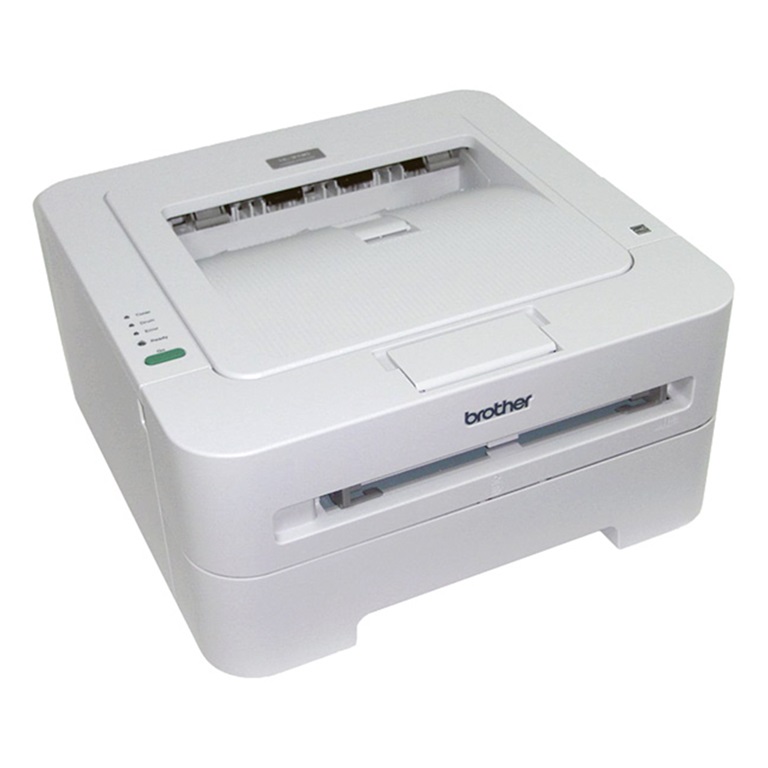
The Brother HL-1110E and HL-1112E have only one button, but you can still print a self-test page without a computer. It shows whether the printer, toner and drum work properly, so you know if a problem is in the printer or on the PC side.

Applies to / What you’ll need
Applies to: Brother HL-1110E and HL-1112E. The same method may also work on other Brother HL-1xxx printers.
What you’ll need: paper in the tray and the printer connected to power. No computer or driver is needed.
How to print the self-test page
- Turn off the Brother printer.
- Press the power button 3 times.
- The printer prints the self-test page automatically.
What to check on the self-test page
- Light or faded print: toner is low – shake or replace the toner cartridge.
- Repeating dots or marks: usually the drum unit.
- Clean page, but nothing prints from the PC: the printer is fine – check the USB cable and driver.
FAQ
Do I need the Brother driver to print the test page? No. The page is printed by the printer itself.
Nothing prints after pressing the button? Make sure there is paper in the tray and no error light is on, then try again.
The test page asks for a new drum? See the drum counter reset guide below.
Related guides
- Brother HL-1110 / HL-1112 drum counter reset
- Print a test page on Brother HL-2130
- Brother DCP-1510 toner reset
Browse all test page guides or all Brother guides.